Your creative sidekick, now inside Canva.

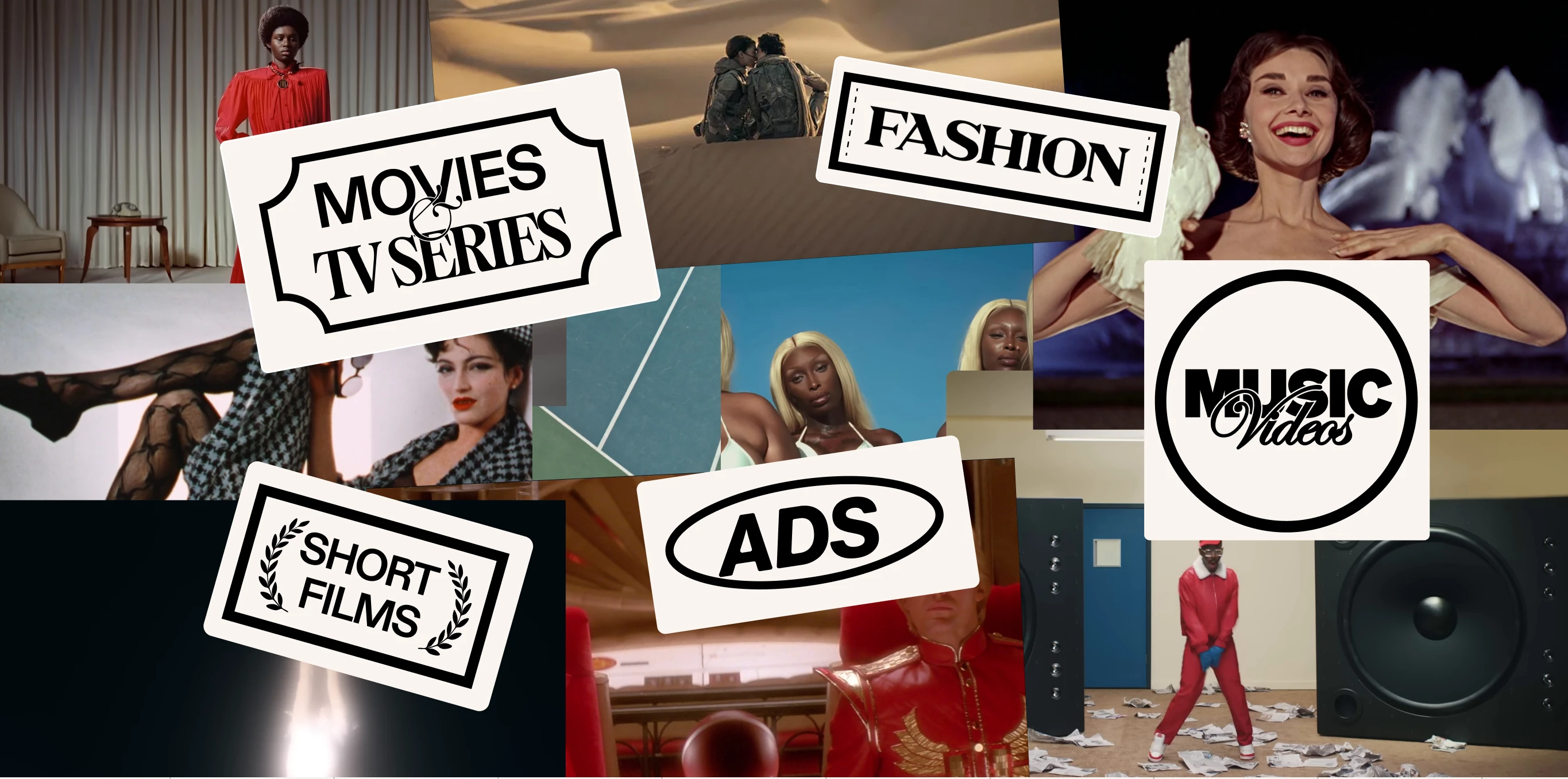
Search 2M+ curated stills and clips from film, TV, ads, and music videos straight into your Canva design.
No new tab. No exporting. No breaking flow.

Search it. Drop it. Done.

From reference to canvas, without ever leaving Canva.

OPEN FLIM IN CANVA
generate any image or video
Keep track of your generations
SEARCH YOUR REFERENCE
Use presets
Prompt anything
generate any image or video
Animate your moodboards
Write your pitch
Generate a curation
Enrich your board

How it works

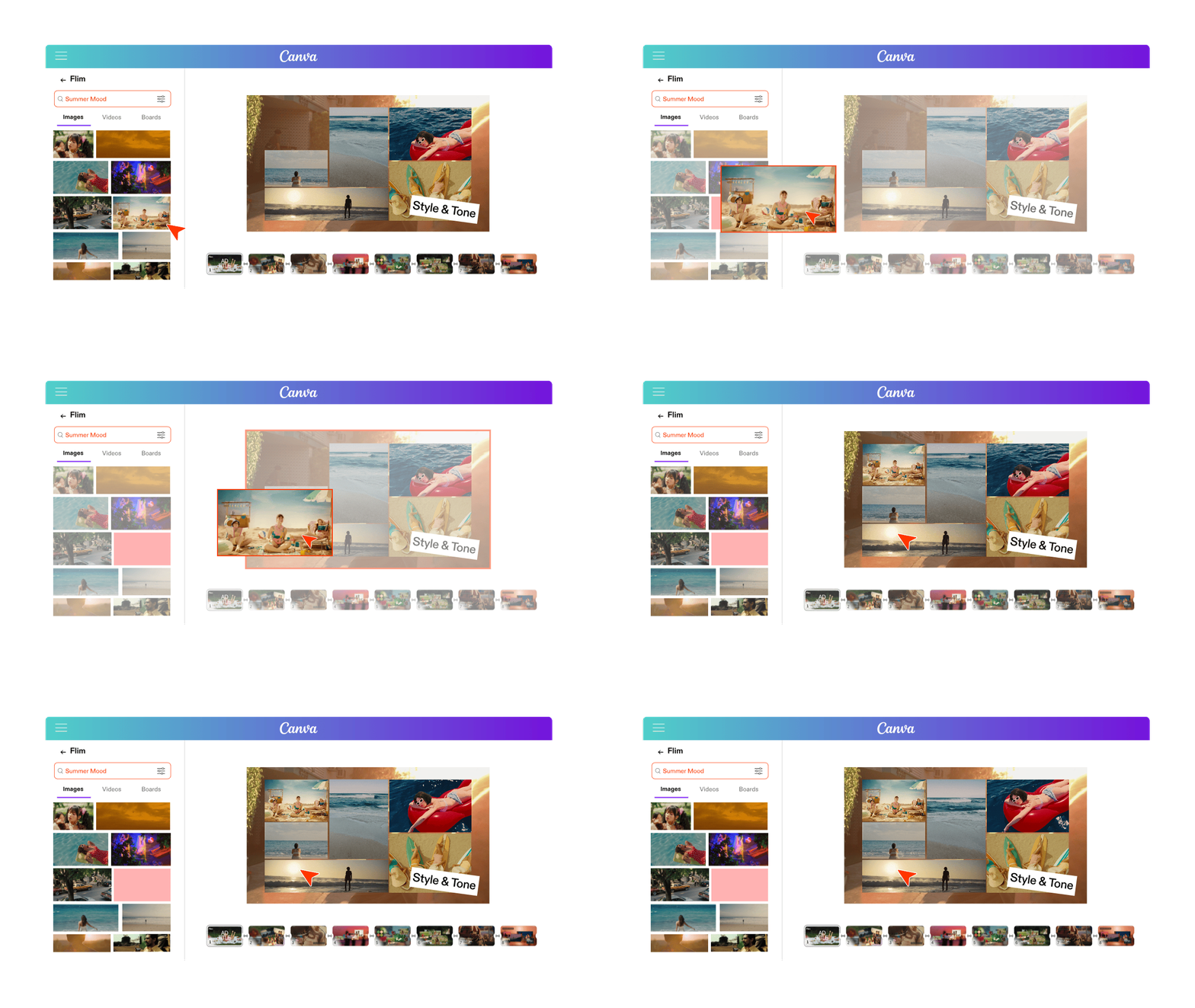
From Search to Slide in 3 moves

Open the Apps panel
In any Canva design, open Apps and search for “Flim”.
Search your reference
Browse curated stills and clips by mood, era, or genre — without leaving your design.
Drop it into your design
Click to place any still or clip directly onto your canvas. It's already in your file.

Built for how creative teams actually work

Flim is the reference library. Canva is where you build.
Now they’re the same workspace.
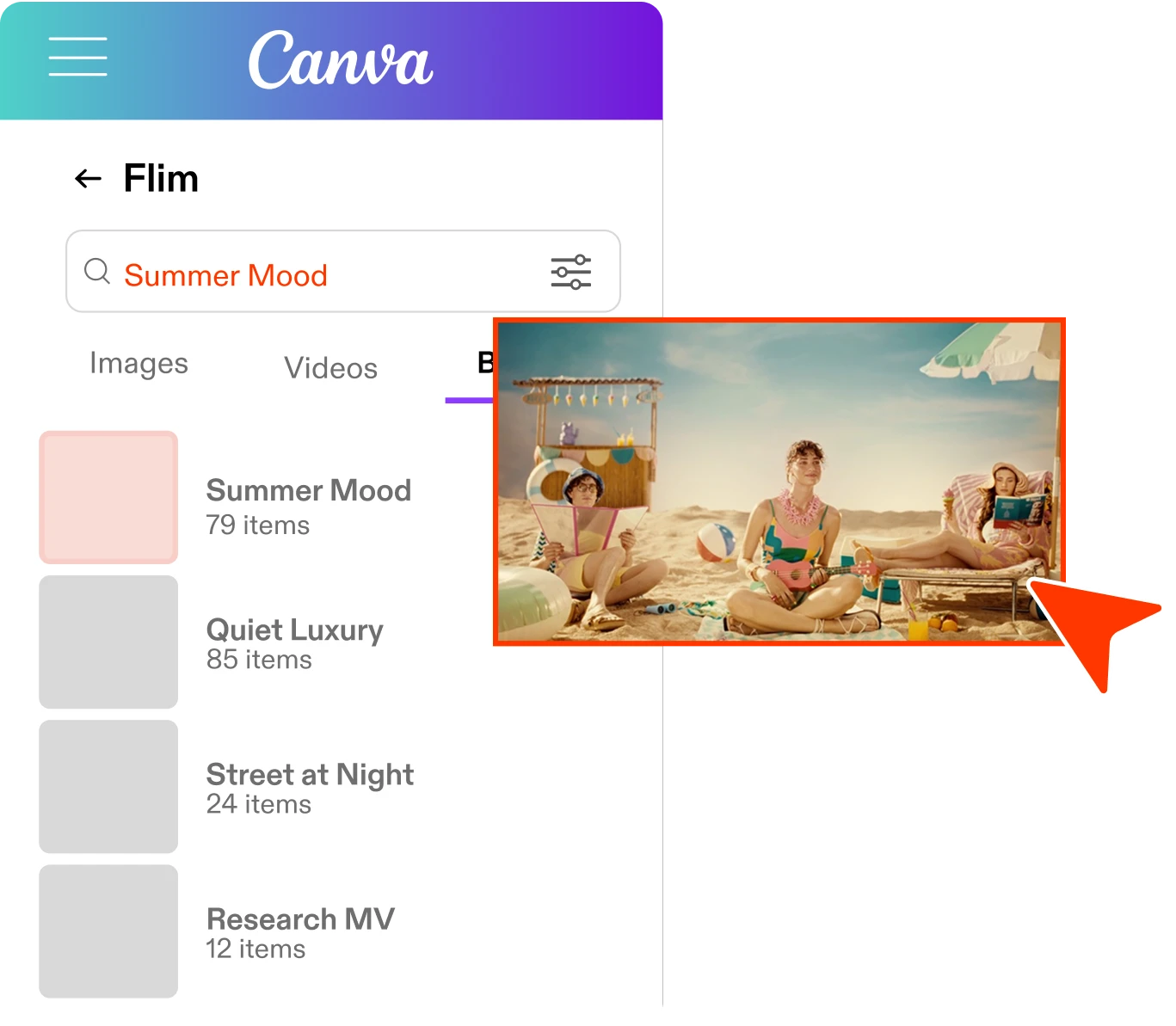
A curated library, on tap
Import straight into moodboards, decks, and social templates. Your reference becomes your design.
One click, no exporting
Thousands of hand-picked stills and clips from film, TV, ads, and music videos — sourced for visual storytellers, not stock photographers.
Bring your Boards with you
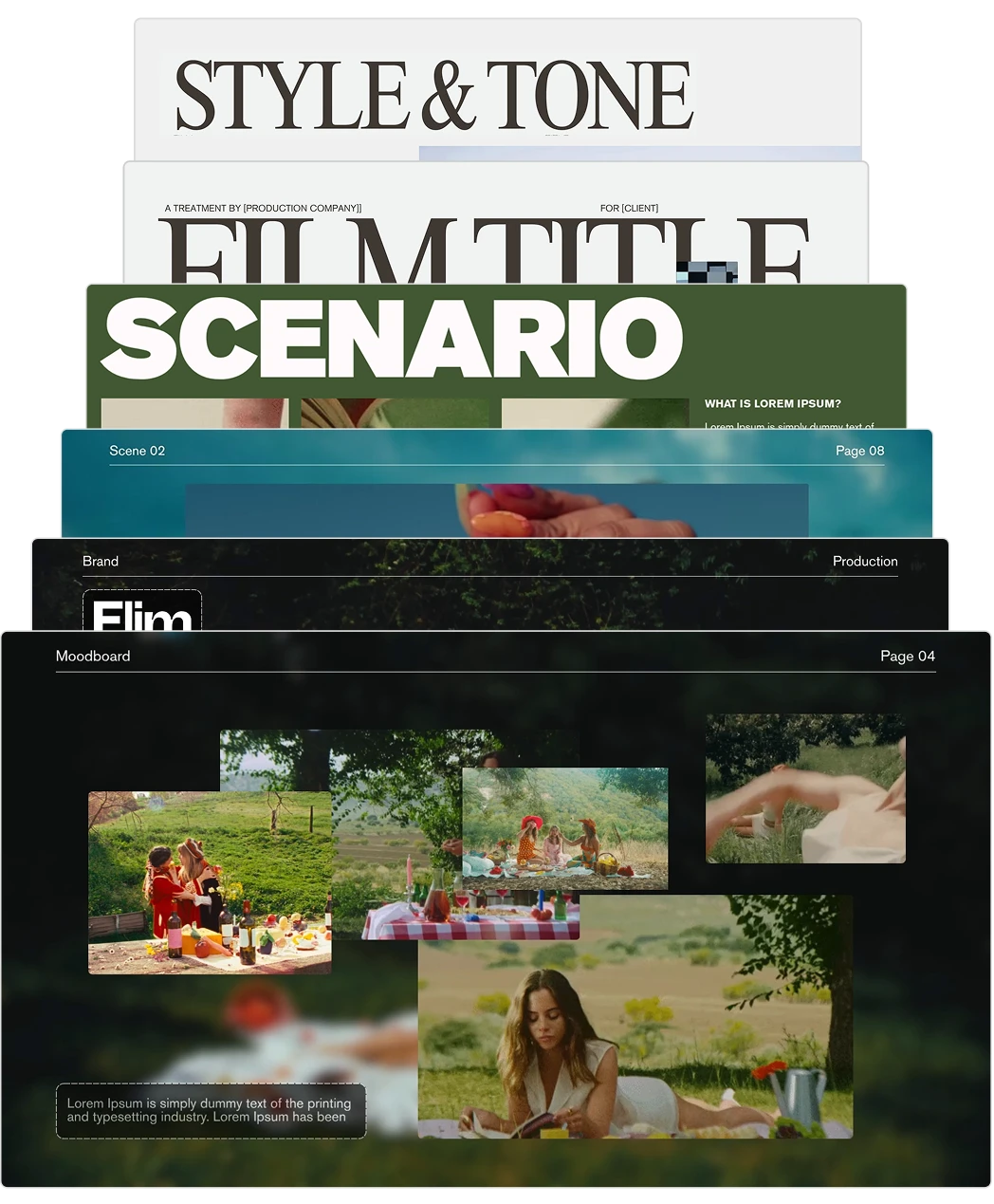
Pull your Boards into Canva and drop references straight into ready-made treatment templates.
Safe Search
Safe Search
Filter results to ensure the archive stays production-ready.
Release Year
Release Year
Explore content by the exact year it was released.
Character
Character
Define the human scale, from crowded shots to isolated close-ups.

Stop switching tabs.Start dropping references in.

Search beautifully. Design without ever leaving Canva.

One click, no exporting
Thousands of hand-picked stills and clips from film, TV, ads, and music videos — sourced for visual storytellers, not stock photographers.
Bring your Boards with you
Pull your Boards into Canva and drop references straight into ready-made treatment templates.
Safe Search
Safe Search
Filter results to ensure the archive stays production-ready.
Release Year
Release Year
Explore content by the exact year it was released.
Character
Character
Define the human scale, from crowded shots to isolated close-ups.

Got
Questions?

Flim combines a curated library of 2M+ stills and video cuts from film, TV, ads and music videos with AI generation tools. Search by mood, concept or image, save references to Boards, edit and generate new visuals from your research, all in one workspace.

Click Join, fill in the registration form (or sign in with Google), then click Join Now. Confirm your account via the link Flim emails you.

ShotDeck's search relies on metadata: title, year, director, genre, technical shot information. It's built for film technicians who already know what they're looking for. Flim uses an AI semantic search engine trained on visual meaning: you describe what you're looking for ('blue hour, distant figure, 70s film stock') and the engine surfaces frames that match the feeling, not just the facts. Flim also has its own tags and filters for narrowing by shot type, colour, or format once a search returns results. For a creative brief that starts from a mood or an aesthetic rather than a title, this combination makes a significant difference.

Yes. Flim is built as an all-in-one creative assistant. Beyond search, it offers collaborative moodboards, Magic Board (generate a full board from a pitch or story description), Aesthetics (lock a custom or predefined visual style), and a cinematic generation studio that generates within that style (Nano Banana for images, Veo and Seedance for video). ShotDeck is limited to reference search and basic board building. Flim covers the full creative workflow.

Yes. Drag and drop an image or paste a web URL into the Search Bar, and Flim finds visually related shots by composition, grading, or lighting.

Stills are static frames, while Video Cuts are short video extracts currently available for music videos and commercials only, not feature films. Both can be saved to Boards or used as references in the AI Dock.