Introducing Generate: one space for AI images and video
A treatment rarely stops at found references: at some point you need the frame that doesn't exist yet, and AI image and video generation is how you make it. Until now, that happened in the AI Dock, a panel beside your search results. Generate is a new full-screen page on Flim built for generation only, with every model, every setting and the history of everything you've created in one place. Find your references in the library, then move to Generate to build what comes next.
How it works
Generate now is a dedicated space: app.flim.ai/generate. The AI Dock stays on the main grid for a quick generation in the middle of a search. Generate is where your generation workflow carries on.
Generate keeps the whole process in one place: the prompt, your references, and every version they produce. Rerun the same prompt, edit a result, try again. Each version builds on the page next to the others, so you can compare the results.
Below are the main use cases where image and video generation can help your work.
Pitch a frame that doesn't exist yet
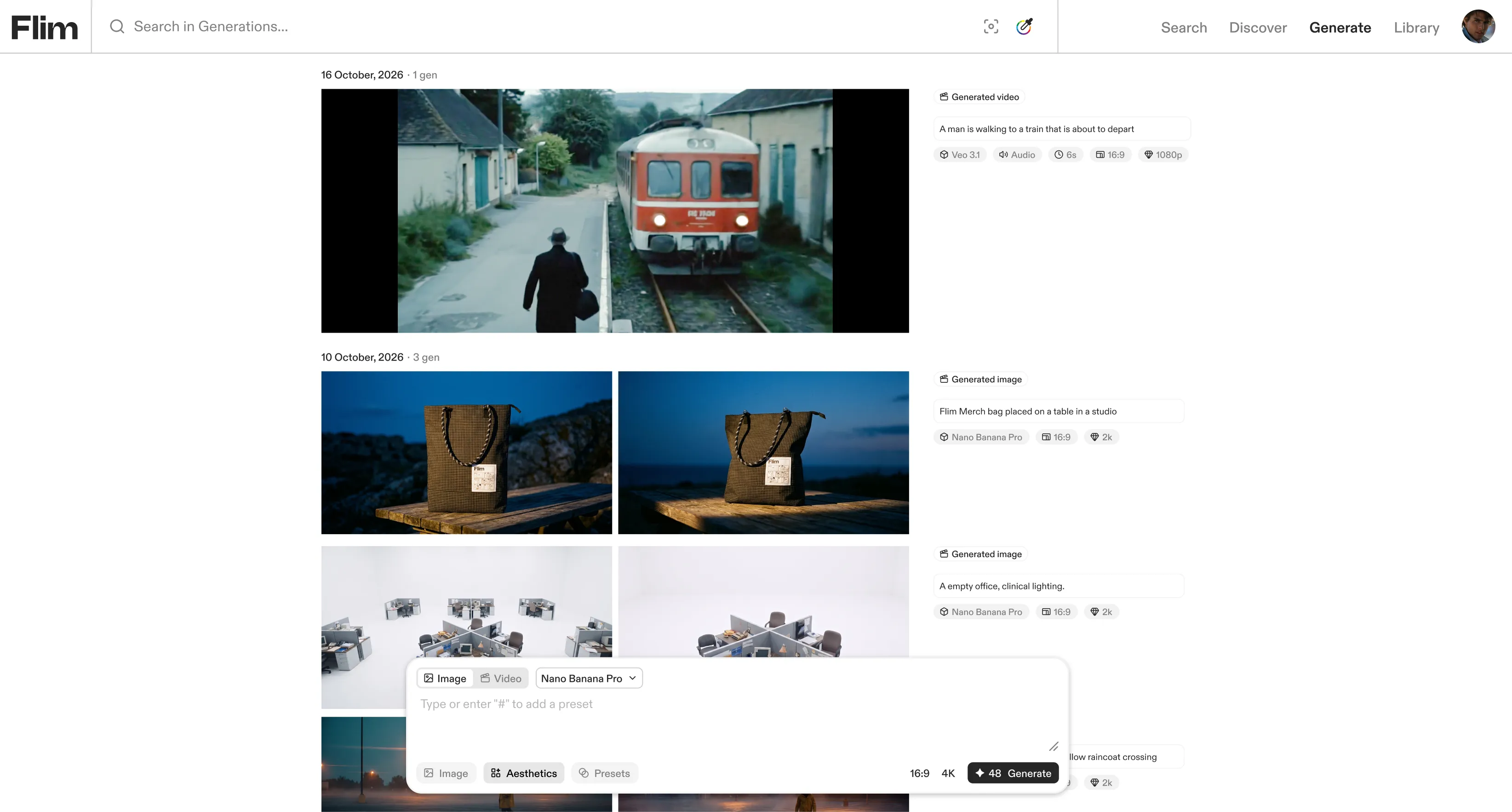
A director answering a music video brief often has one image in mind that no film has shot. Describe it the way you'd describe it to a DOP: the shot size, the hour, the light, the lens, the palette. The more your prompt reads like a shot description, the more the result reads like a frame from a film.
Prompt · Nano Banana Pro · 4K · no reference image
Wide shot of a lone figure in a yellow raincoat crossing an empty parking lot at blue hour, sodium streetlights reflecting in deep puddles, low ground fog, anamorphic lens flare, muted teal and amber palette, cinematic widescreen framing.
Rework a reference without starting over
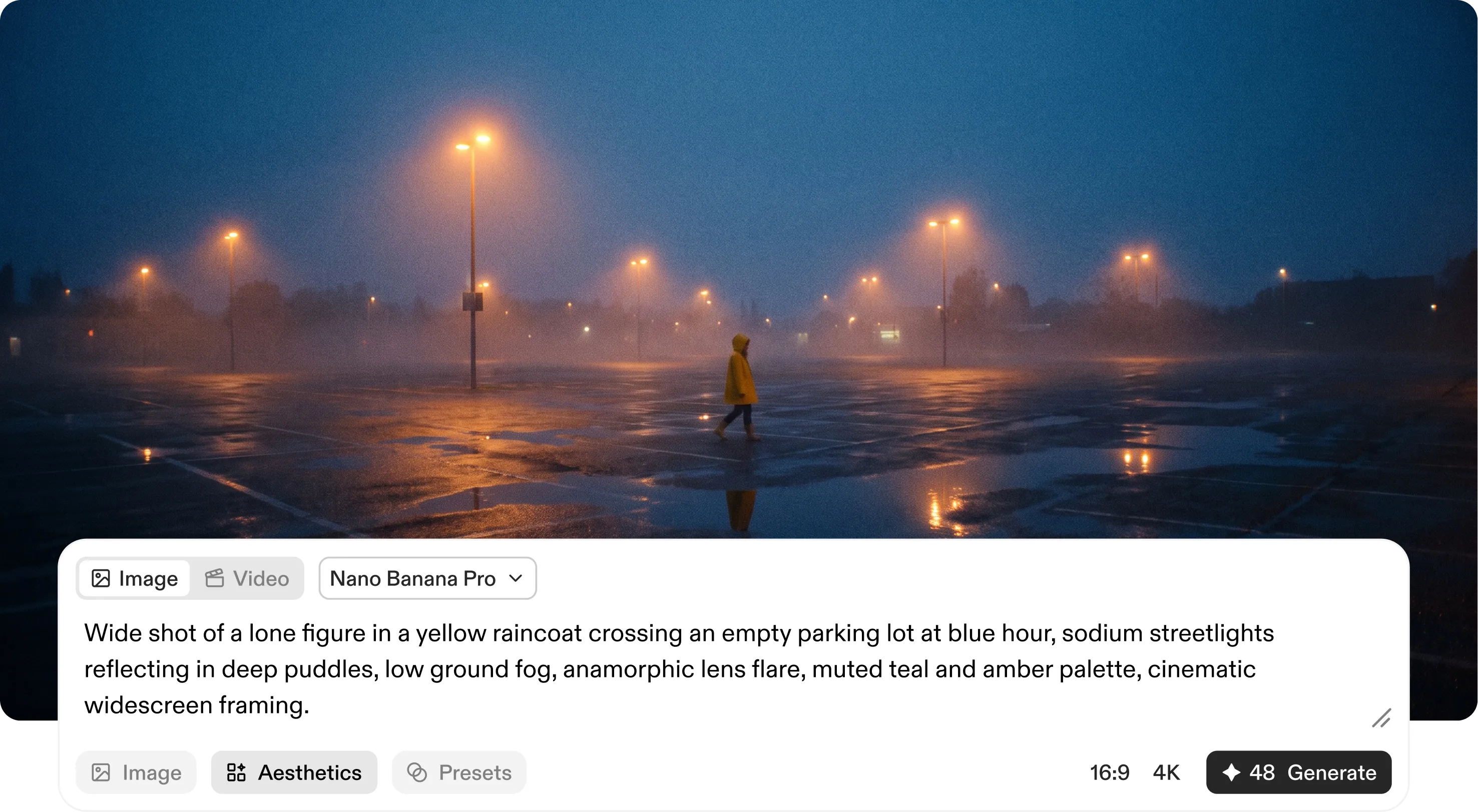
An art director building a moodboard finds the right street, the right building, the right composition, but at the wrong hour or from the wrong angle. Drop the still into Generate as a Seed image and change only what's off. The reference keeps its composition, and you change one variable at a time.
1. Change the time of day
The Sunset preset turns a daytime still into sunset light, no prompt needed.
Nano Banana 2 · Seed image: a daytime street still, no visible faces · Preset: Sunset · no prompt
2. Explore another framing
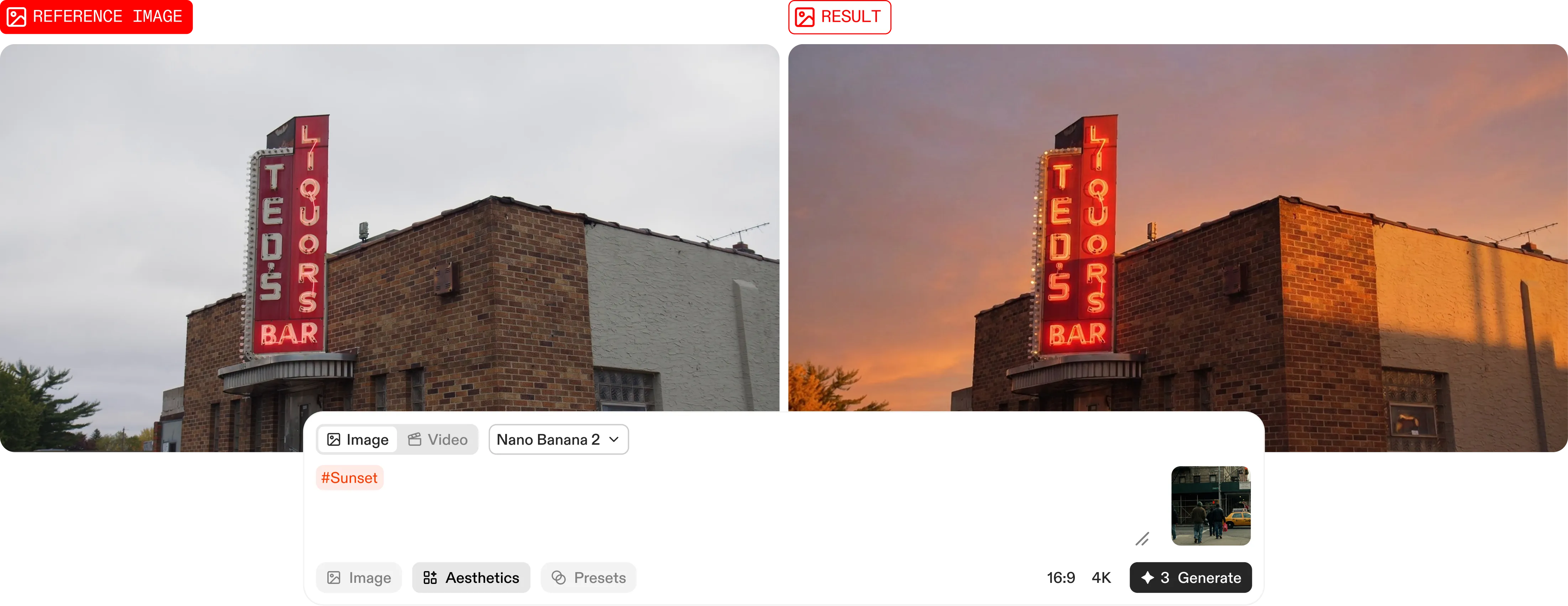
Camera presets reframe the same scene. Zenithal shot gives you the top-down view the original never had.
Nano Banana 2 · Seed image: a wide exterior still (building, landscape) · Camera preset: Zenithal shot · no prompt
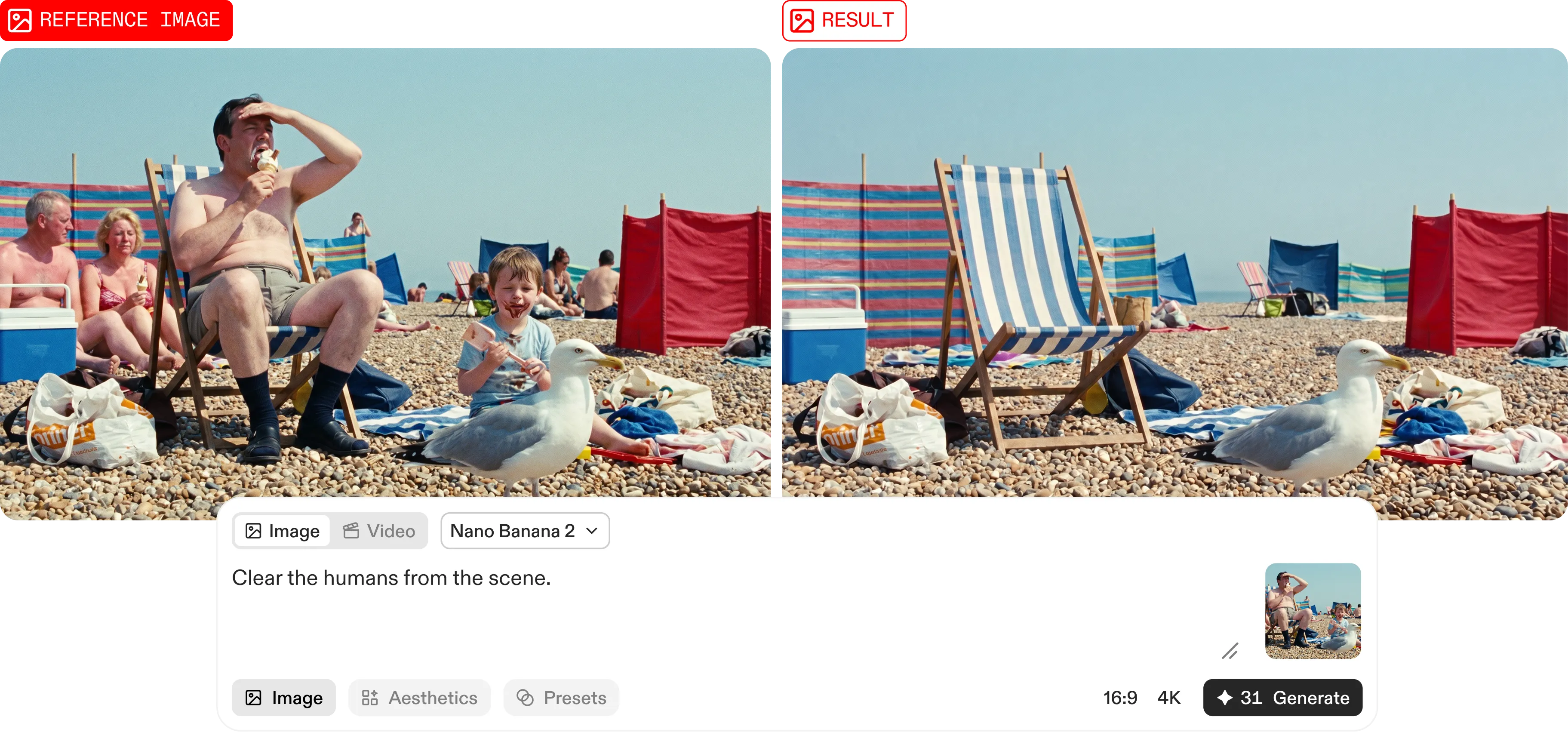
3. Clean up the scene
A short prompt handles quick retouches, like clearing a figure out of a location reference.
Prompt · Nano Banana 2 · Seed image
Clear the humans from the scene.
Bring a still into motion
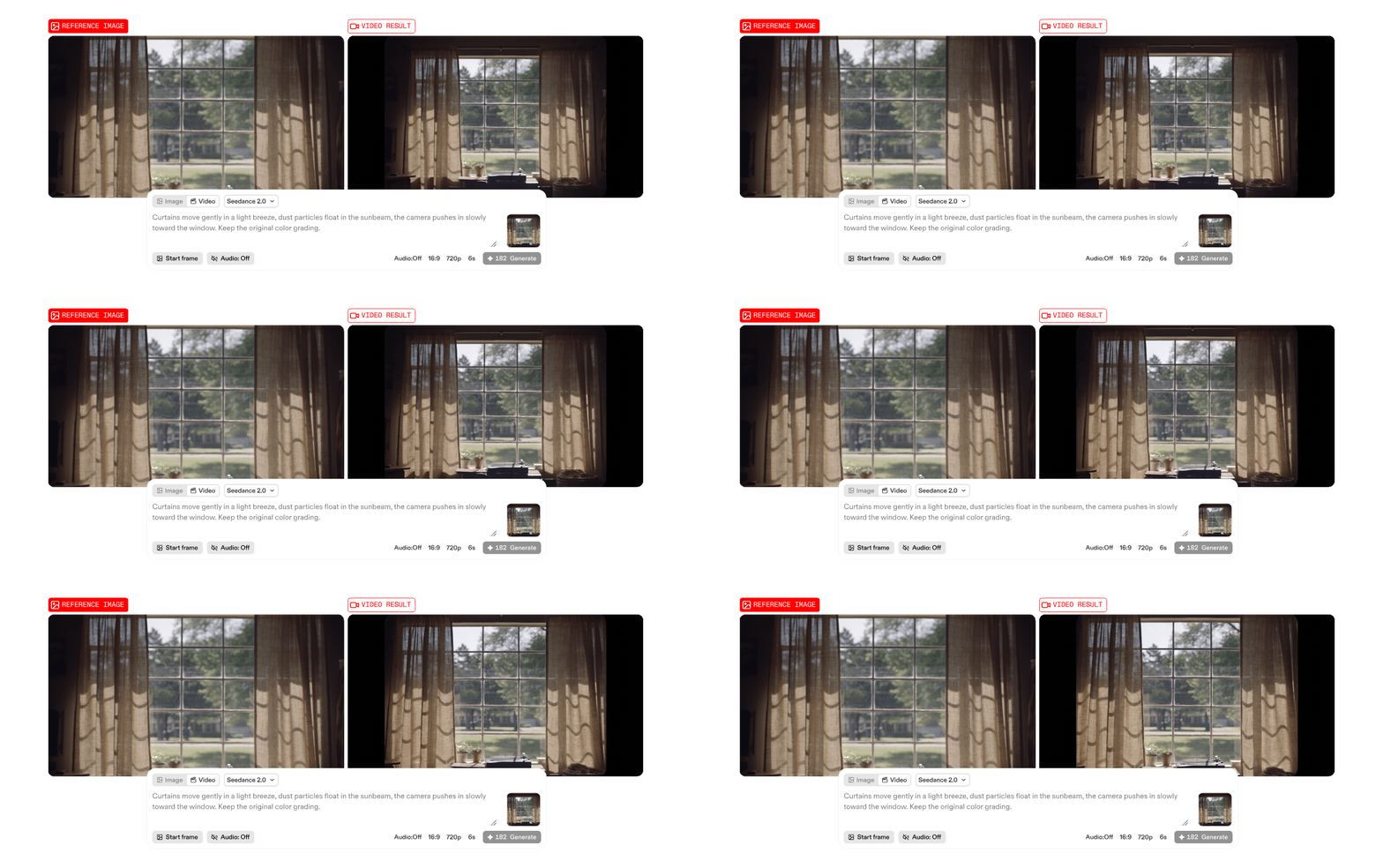
A still tells the client what the shot looks like. A clip tells them how it moves, how slow the push-in is, how the light shifts. For a DOP defending a camera move or a director showing pacing, a few seconds of motion settles what a paragraph can't.
Use a still as the Seed image, then describe the movement in the frame and the movement of the camera separately. Ask the model to keep the original color grading, so the clip stays faithful to the reference you chose.
Prompt · Seedance 2.0 · 6 s · 16:9 · Seed image: an interior still with a window and sunlight, no visible faces
Animate this frame: curtains move gently in a light breeze, dust particles float in the sunbeam, the camera pushes in slowly toward the window. Keep the original color grading.
Start / End Frame: build the transition
When you already know where a shot begins and where it lands, give the model both. Add a Start Frame and an End Frame, and the model generates the transition between them. It works with every video model on Flim, which makes it a direct way to show a match cut or a time jump in a treatment.
Build one scene from mutiple references
A visual researcher often finds the location in one film and the character in another. Instead of describing both from memory, drop both images in and give each one a role in the prompt: this one is the setting, that one is the character. Naming the role of each image is what turns a mix into a composition.
Prompt · Nano Banana Pro · References: (1) a desert motel at dusk, (2) a character in a long coat seen from behind
Use image 1 as the background. Place a character dressed like the one in image 2, seen from behind, standing by the motel.
Image models take up to 15 reference images. The same logic carries into video: Seedance 2.0 and Seedance 2.5 take up to 9 reference images, plus audio references. With several references, the model keeps the setting and the character consistent through the whole movement.
Prompt · Seedance 2.0 · 8 s · 16:9 · References: (1) a small Mediterranean piazza with a fountain at golden hour, (2) a woman in a yellow summer dress with a vintage bicycle
Use image 1 as the setting and image 2 as the character. The woman rides her bicycle slowly around the fountain. The camera tracks alongside her in one continuous shot.
.webp)
Hold one look across every frame
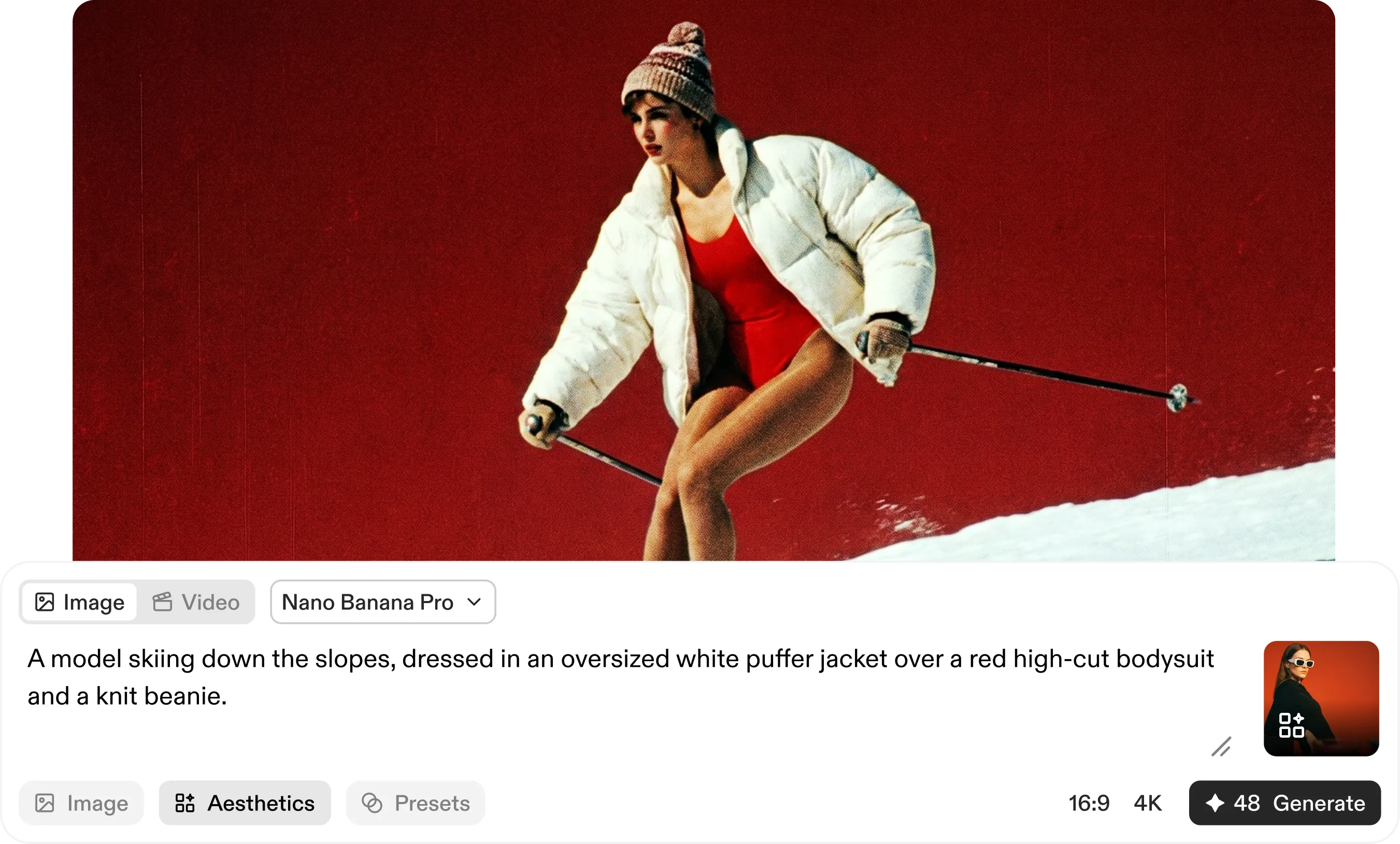
A content manager producing a season of visuals can't rewrite the same style description in every prompt and hope it holds. Aesthetics lock a visual direction once, then apply it to any prompt. Build your own from 4 to 10 images that define the look, or start from an Aesthetic predefined by Flim or shared by the community. The prompt describes the subject, the Aesthetic carries the style.
Prompt · Nano Banana 2 · Aesthetic: a predefined Flim Aesthetic (vintage magazine) · no reference image
A model skiing down the slopes, dressed in an oversized white puffer jacket over a red high-cut bodysuit and a knit beanie.
Built for creative workflows
Research and generation in one place: start from more than 2 million handpicked stills and video cuts, then generate from them without exporting a thing. Your visual reference workflow stays in one tool.
Every model, one page: Nano Banana 2 Lite, Nano Banana 2, Nano Banana Pro and ChatGPT Images 2.5 for images; Veo 3.1, Seedance 2.0 and Seedance 2.5 for video.
Private by default: your generations and uploads stay private to your account and are not used to train AI models.
Mana, per generation: each generation consumes Mana, and the amount depends on the model. Pro includes 800 Mana per month, and the Pro Yearly Plan includes unlimited generations with Nano Banana 2 Lite.
Generate is available now on Flim with a Pro plan.
Got
Questions?

An Aesthetic is a custom generative style built from up to 10 reference images. Flim extracts the lighting, mood, color profile, and artistic DNA of your selection and turns it into a reusable preset you can apply to any generation.
Yes. You can mix images from Flim's library with your own uploaded assets when building a board, as long as you stay within the 10-image limit.
Both. You can use your custom Aesthetic to generate brand new frames or to edit existing images while keeping the same visual consistency.
No. Once your Aesthetic is created, it acts as the creative brief. You can generate new scenes with a simple text prompt, and Flim will lock in the visual style, lighting, and mood automatically.